Image Image Dark
Image Image Dark

Billing

Invoice Customers and Get Paid Online

Send invoices your customers can pay by card, PayPal or Zelle, and keep every payment, receipt and balance in one place.

1 Billing

Billing and Payments in One Place

Access invoices, payments, and receipts from one centralized workspace to keep your financial information organized.

Clearer financial management for your team

Manage invoices, payments, receipts and balances from one workspace built to keep your records organized.

Invoices Payments Receipts Collections Reports QuickBooks
Invoice management

Create, send and track invoices from one dashboard, with a clear status for each one.

Online payments

Take card payments through Stripe, Square, Clover or PayPal. Save a customer's card with Stripe and turn on autopay for invoices as they come due.

Collection follow-up

See overdue, due-soon, unsent and partially paid invoices at a glance, and resend any invoice in one click.

QuickBooks Online

Import invoices from QuickBooks and export the Cybix invoices you choose.

From Invoice to Payment

Track every step of the billing process, from creating invoices to recording payments.

Invoice Created

Bill a contact or business with your services, terms and tax.

Invoice Sent

Email it with a link your customer can pay from.

Follow-Up

Spot overdue or unsent invoices and resend them in one click.

Payment Received

Card, PayPal or Zelle, in full or in parts.

Updated History

Receipts, balances and statements stay current.

Organized financial records

Keep invoices and payment records in one place.

Better financial visibility

Track payments and financial activity with confidence.

Centralized records

Access invoices, receipts, and financial transactions from one dashboard.

Payments & accounting integrations

Take card payments through Stripe, Square, Clover or PayPal, accept Zelle and your own payment options, and move invoices between Cybix and QuickBooks Online.

Simple setup

Choose your default card gateway, offer PayPal next to it, and switch from test to live when you're ready.

Centralized payments

Take payments through Stripe, Square, Clover and PayPal, plus Zelle and your own manual payment options.

QuickBooks Online

Connect once, then import QuickBooks invoices and export the Cybix invoices you select. A QuickBooks-ready CSV export is included too.

See what's owed at a glance

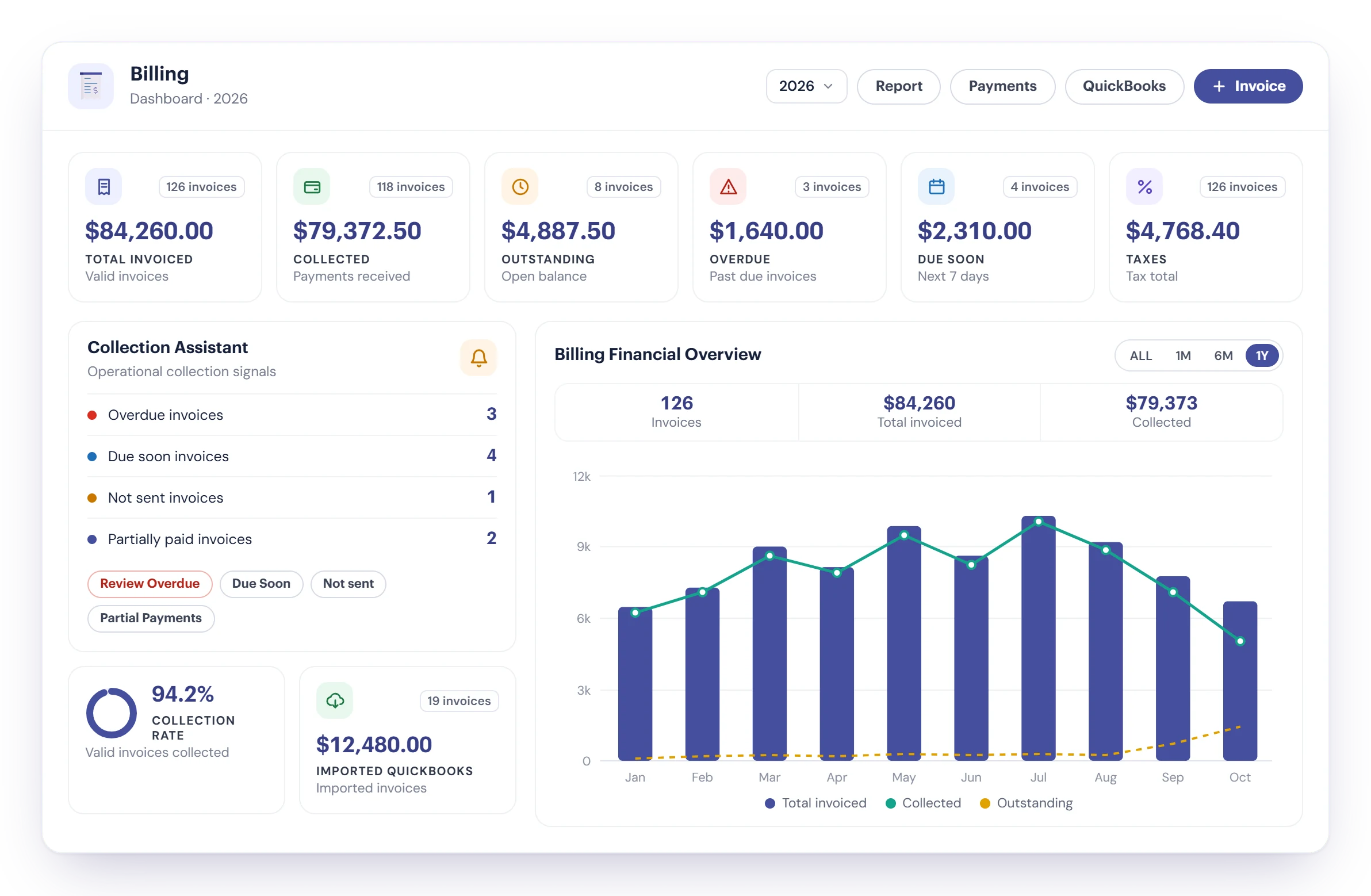
The Billing dashboard opens with six totals for the year you pick: invoiced, collected, outstanding, overdue, due in the next 7 days, and taxes, each with its invoice count.

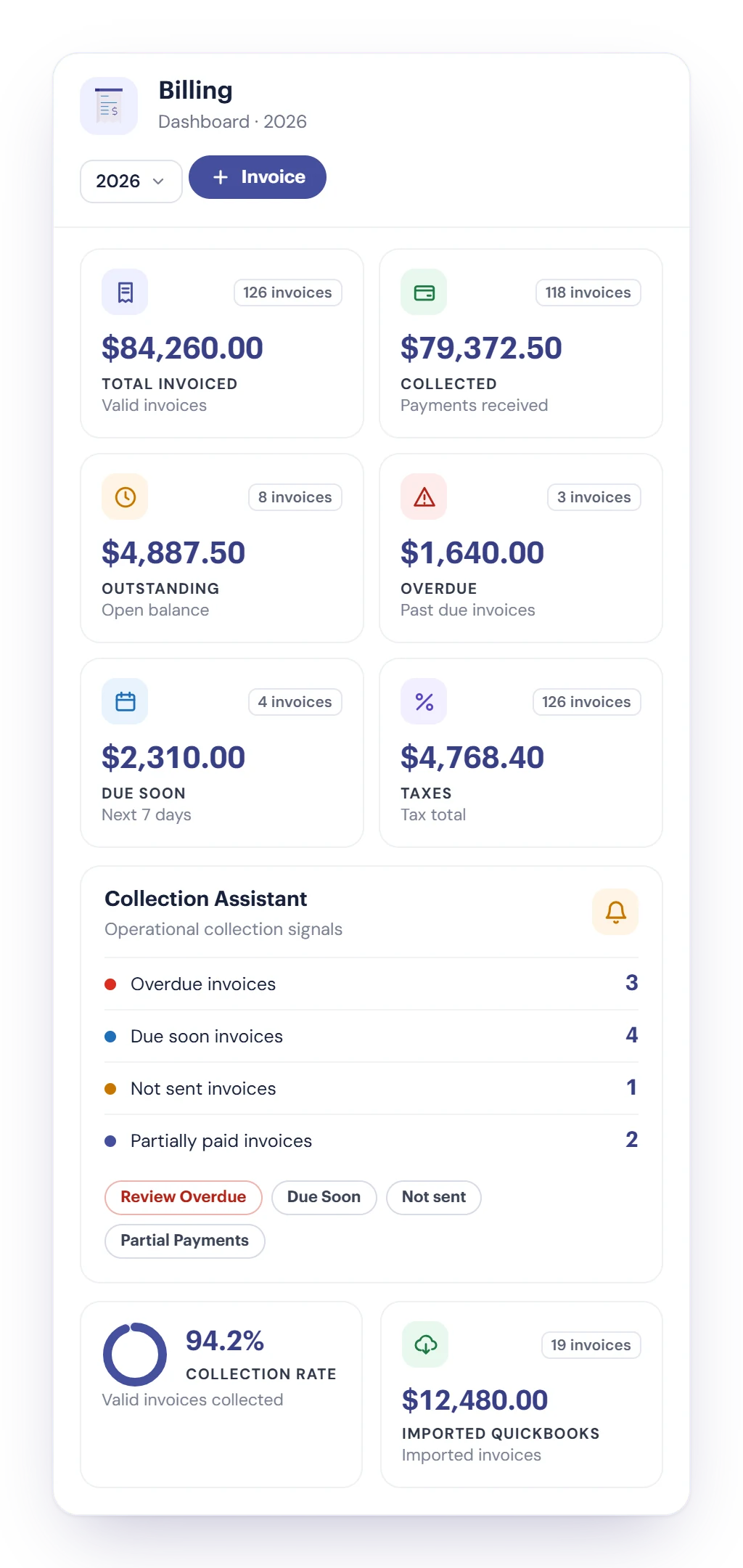
The Cybix Billing dashboard: totals for invoiced, collected, outstanding, overdue, due soon and taxes, the Collection Assistant with overdue, due-soon, not-sent and partially paid invoices, a collection rate of 94.2% and the monthly financial overview chart
  • Collection Assistant

    Counts overdue, due-soon, unsent and partially paid invoices, with one click to open each list.

  • Collection rate

    Shows how much of what you invoiced has been collected, next to the total imported from QuickBooks.

  • Financial overview

    Charts invoiced, collected and outstanding amounts by month, so slow months stand out.

Customers pay from a link

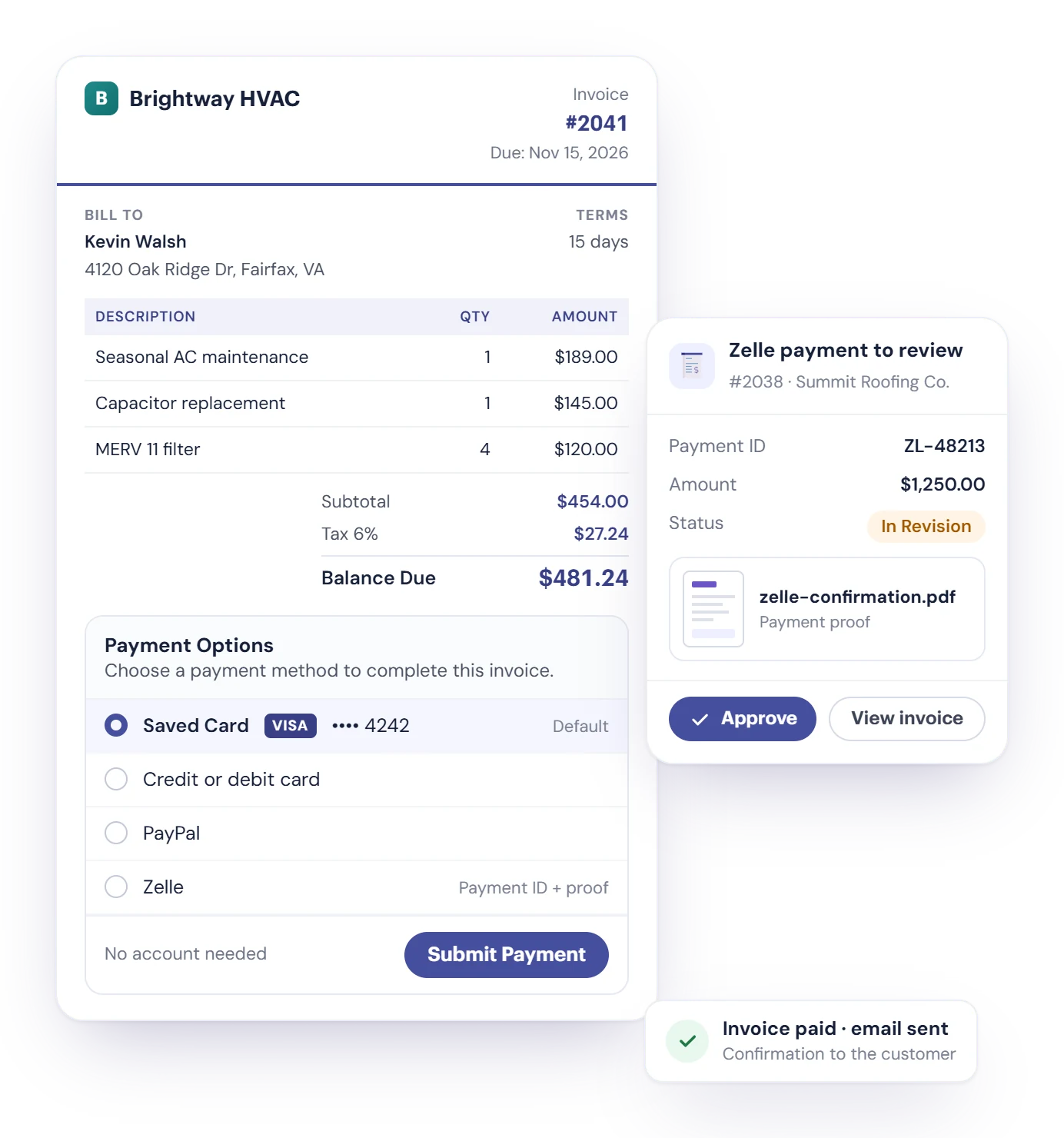
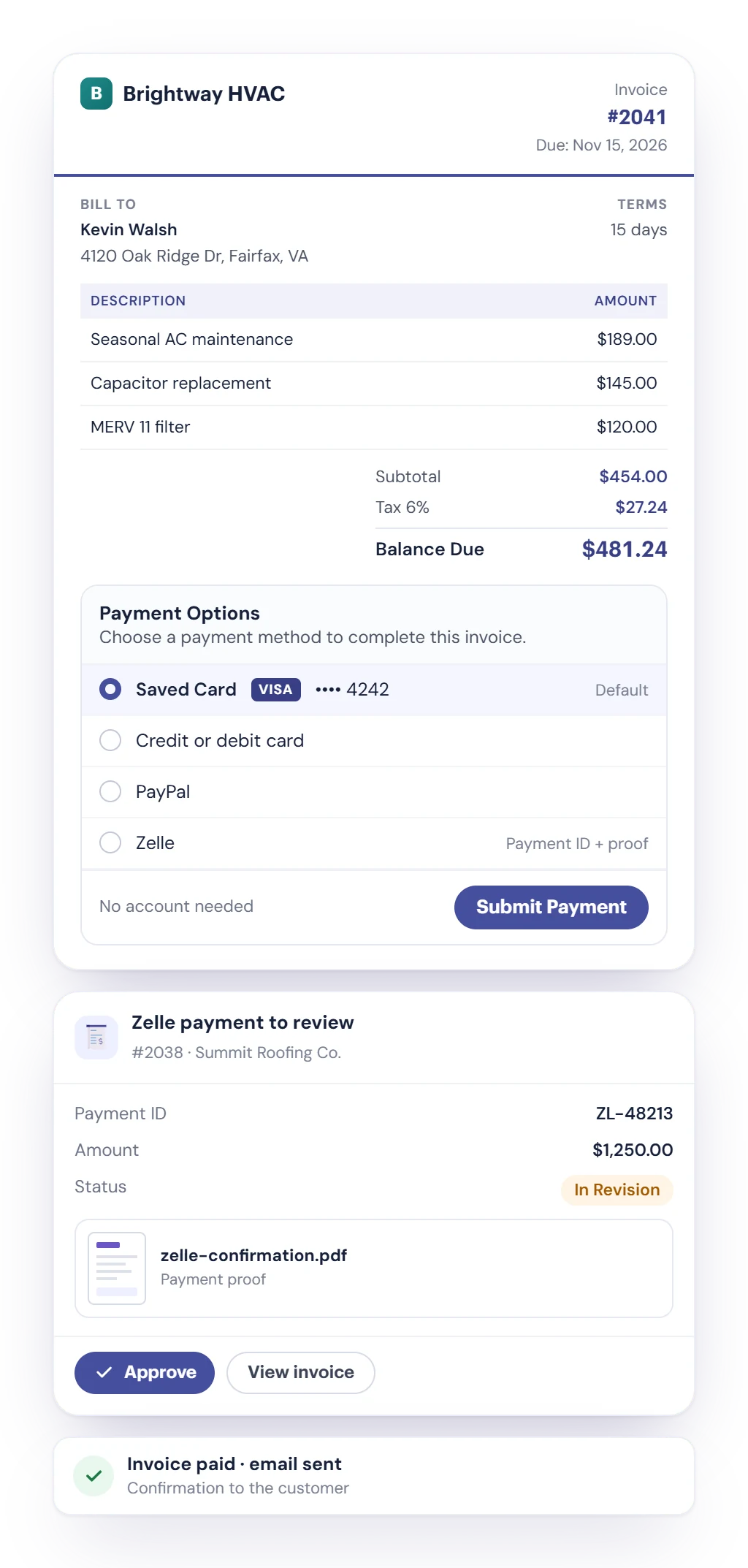
Every invoice email carries a link to the online invoice. Your customer sees the lines, what's been paid and the balance due, and pays without creating an account.

  • Card payments go through your default gateway: Stripe, Square or Clover. PayPal can sit next to it.
  • Customers can save a card with Stripe and pay with it next time.
  • Zelle and your own payment options show their instructions. The customer sends a payment ID and can upload a proof, and the invoice shows as In Revision.
  • Your team checks the proof and approves the payment. When an invoice is paid, the customer gets a confirmation email.
A customer's online invoice in Cybix Billing with the balance due and payment options for a saved card, a new card, PayPal and Zelle, next to the staff view of a Zelle payment with its proof, waiting for approval

Partial payments, credit and autopay

Real customers don't always pay the exact amount on the exact day. Billing keeps the math right.

  1. Pay in parts

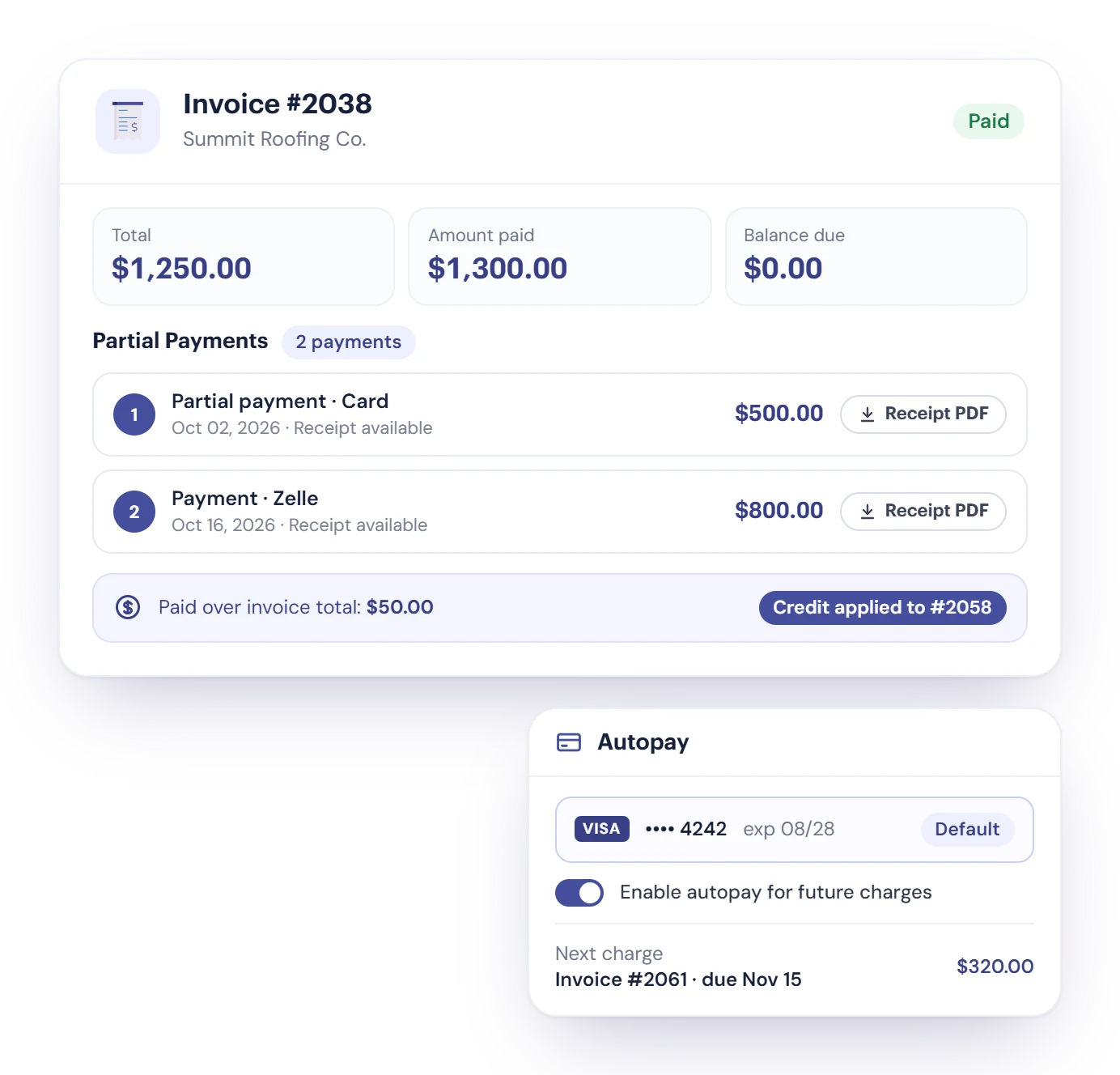
    Record as many partial payments as you need. Each one gets its own receipt you can view or download as a PDF, and the balance updates.

  2. Credit for overpayments

    If a customer pays more than the total, the difference becomes customer credit and is applied to their open and next invoices.

  3. Autopay on a saved card

    Turn on autopay for an invoice and Cybix charges the customer’s saved Stripe card once it’s due. A failed charge is retried twice.

Saved cards and autopay use Stripe.

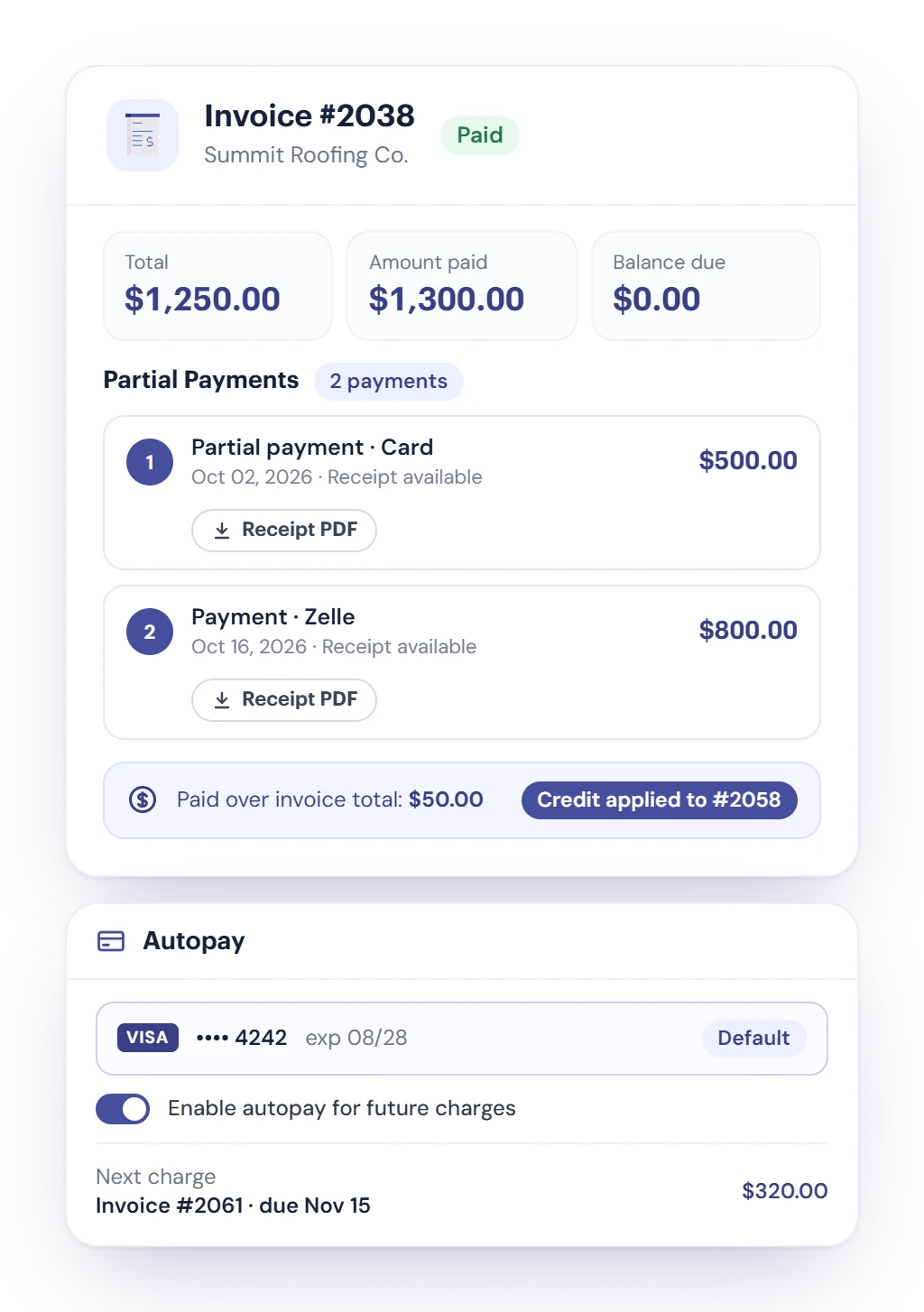
An invoice in Cybix Billing paid in two partial payments, each with a PDF receipt, a customer credit from an overpayment applied to the next invoice, and autopay on a saved Stripe card

Fix it without starting over

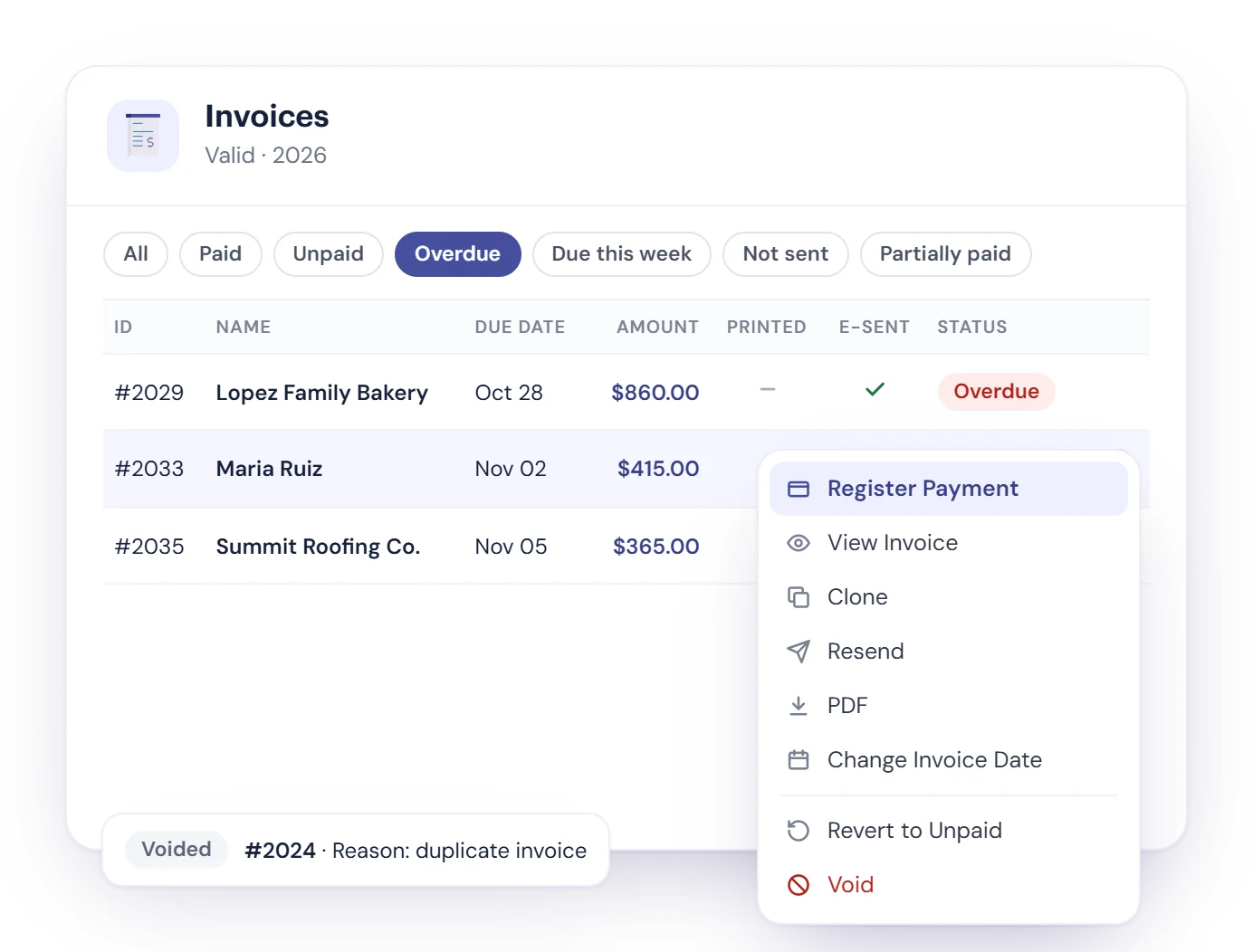
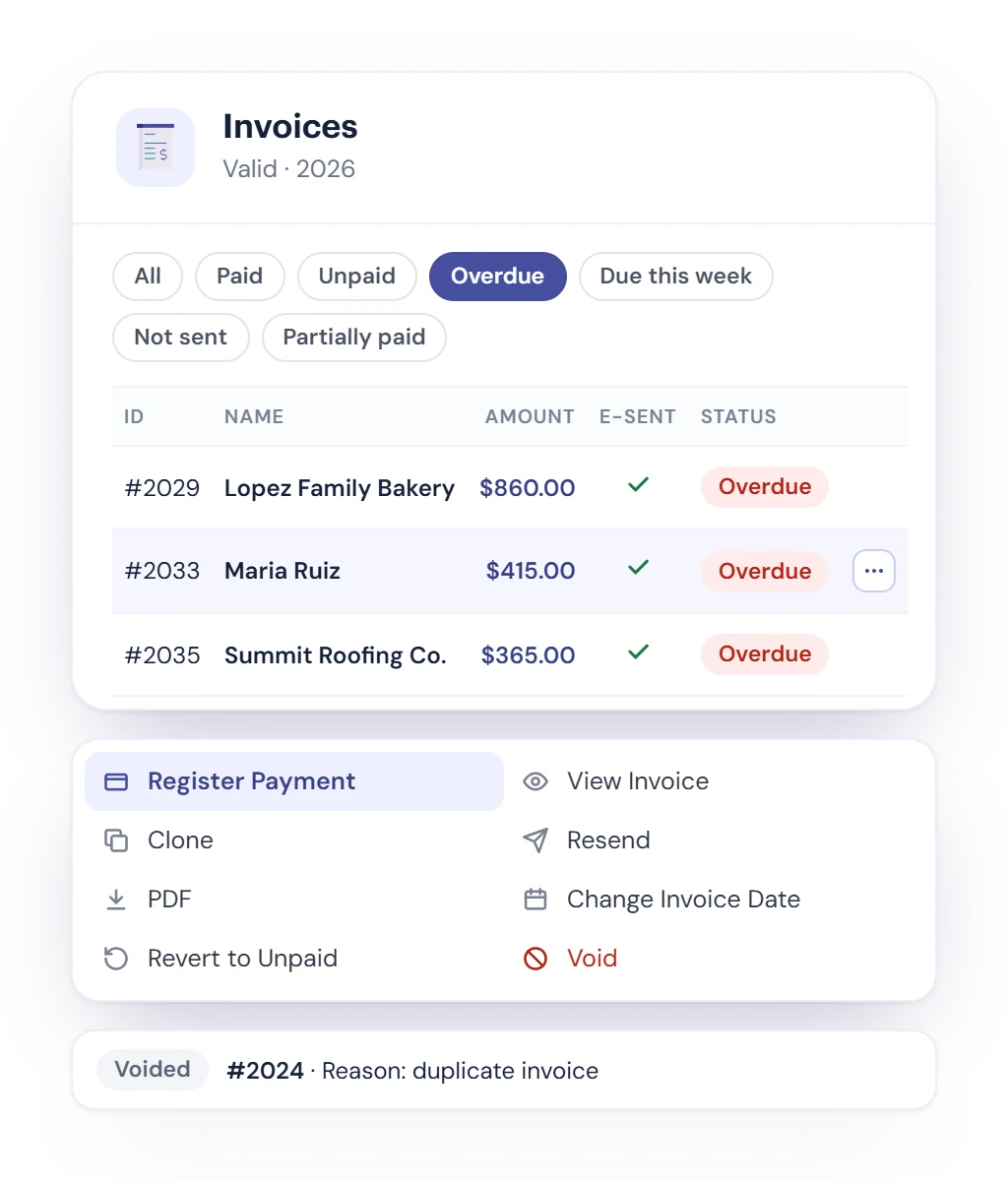
The invoice list filters by status in one click: paid, unpaid, overdue, due this week, not sent or partially paid. Each row shows whether the invoice was printed and emailed.

  • Register a payment, print or download the PDF, right from the row.
  • Clone an invoice for repeat work, or resend it when a customer can’t find the email.
  • Change the invoice date or revert a paid invoice to unpaid, with a reason on record.
  • Void an invoice instead of deleting it. A reason is required, and voided invoices stay in their own list.
The Cybix Billing invoice list with quick filters for paid, unpaid, overdue, due this week, not sent and partially paid, printed and emailed columns, and the actions menu with register payment, clone, resend, change invoice date, revert to unpaid and void

Reports, and a clean handoff to QuickBooks

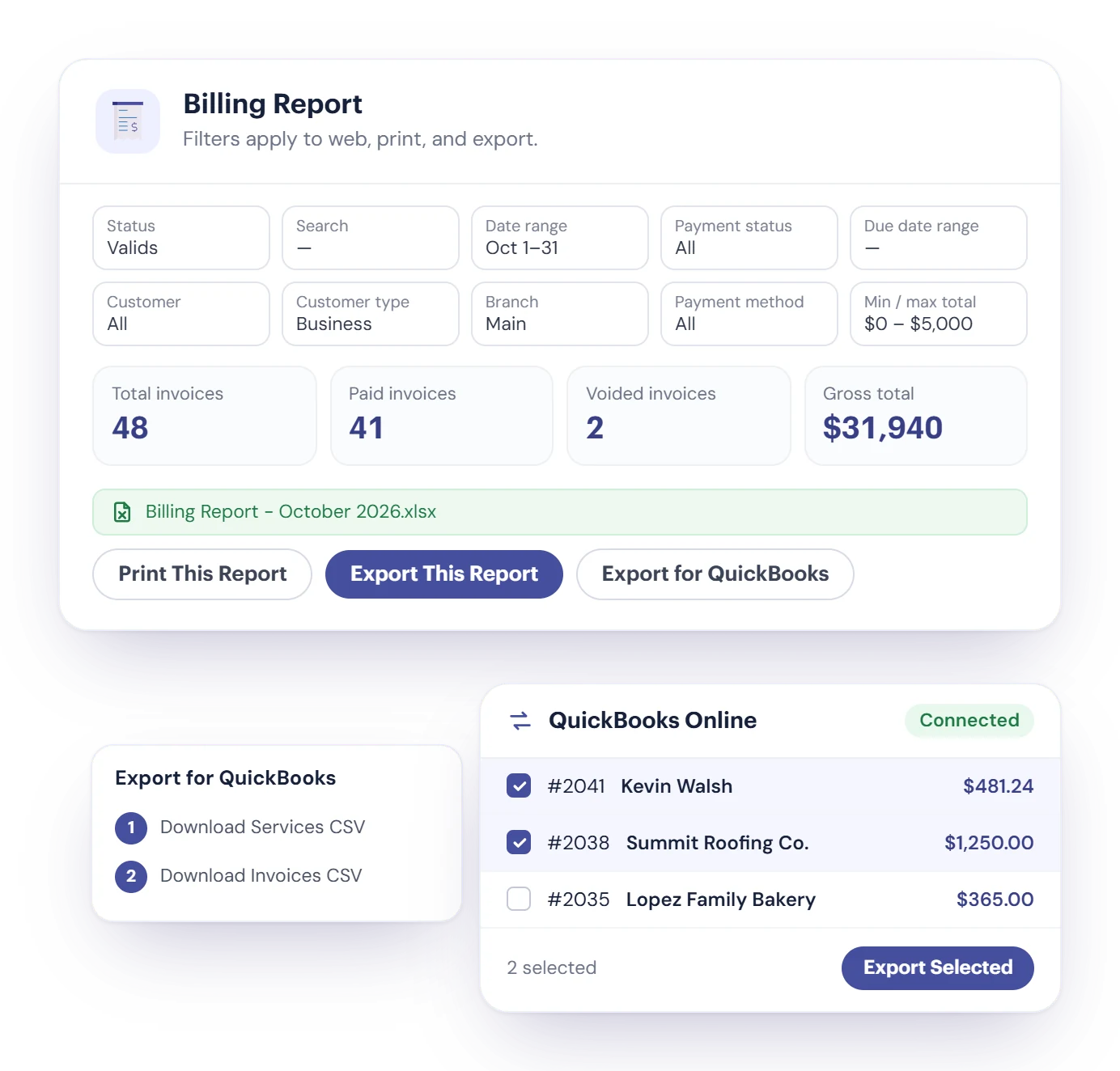
The Billing Report has 10 filters, from dates and due dates to customer type, branch, payment method and amount, and they apply to the screen, the printout and the export.

  • Totals at the top: invoices, paid invoices, voided invoices and the gross total.
  • Print the report or export it to Excel in one click.
  • Connect QuickBooks Online once, then import QuickBooks invoices or export the Cybix invoices you select. You choose what moves, and when.
  • Not connected? Export for QuickBooks gives you two CSV files, services first and then invoices, ready for QuickBooks’ import.
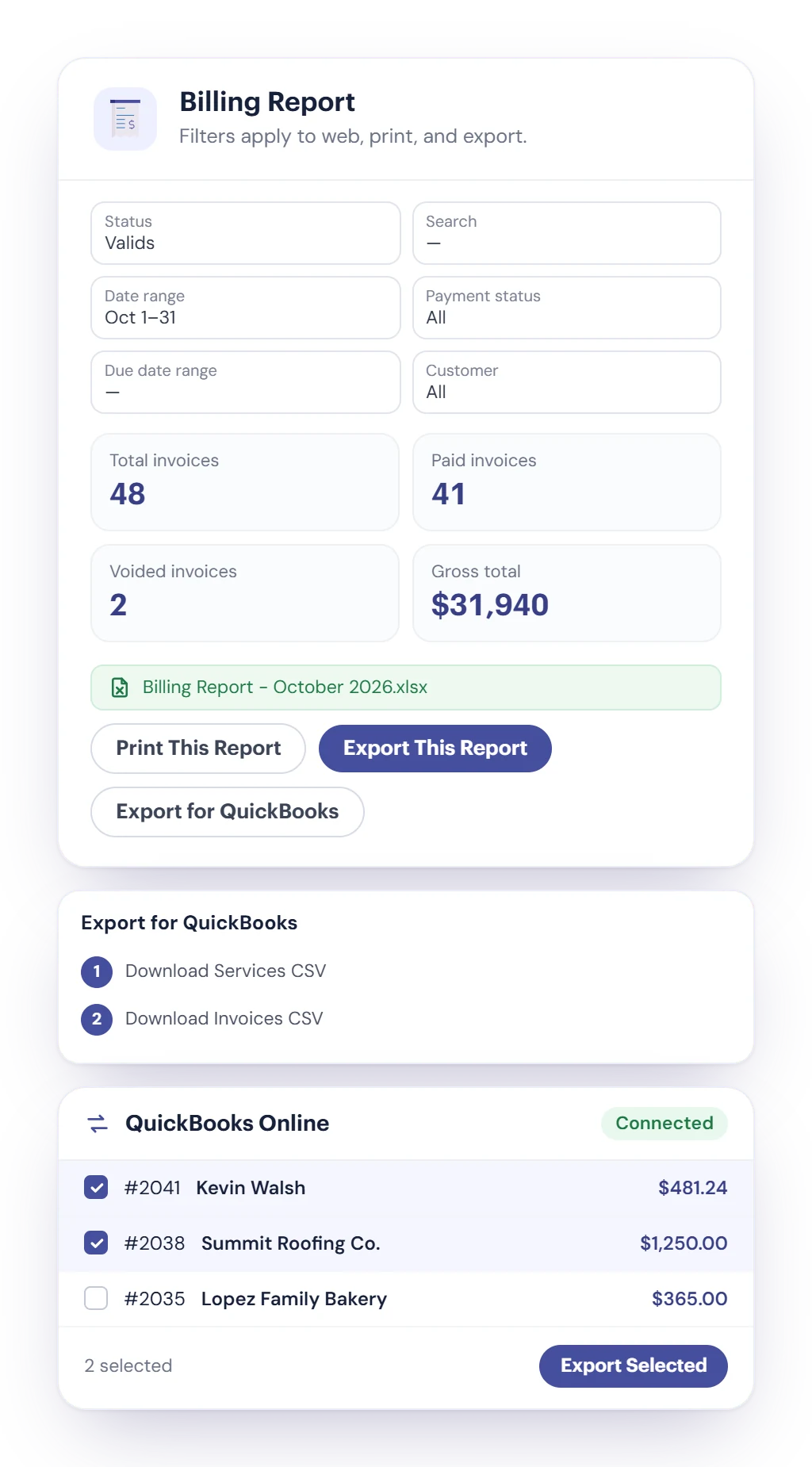
The Cybix Billing Report with filters, totals for invoices, paid, voided and gross total, Print and Export buttons, the 2-step Export for QuickBooks, and the QuickBooks Online screen with invoices selected for export

Connected to the rest of Cybix

Billing works with the modules your workspace uses.

  • Customer statements

    Each contact and business has a statement: opening balance, charges, payments and the running balance, with print and export.

  • My invoices

    Customers with a portal login see their invoices, view and pay them, and download the PDF.

  • From QuoteFlow

    Turn a completed quote into an invoice without typing the customer and services again.

  • With Sales & Operations

    Invoice a work order, bill several at once, or set up recurring invoices from work orders.

  • Payment gateways

    Pick the default gateway, offer PayPal as an option, and switch each one between test and live.

  • Terms & email templates

    Set your payment terms with a default, and edit the Billing emails your customers receive.

Billing questions, answered

Still deciding? Try the live demo or talk to our team.

Billing is where you create invoices, send them, and collect payment. It covers invoices with your products and services, terms and tax, an online invoice page customers pay from, card payments through Stripe, Square, Clover or PayPal, Zelle and your own payment options, partial payments with PDF receipts, customer credit, autopay on saved Stripe cards, a Billing Report with Excel export, and QuickBooks Online import and export.

Each invoice email has a link to the online invoice. From there the customer pays by card through your default gateway (Stripe, Square or Clover), with PayPal if you offer it, with a card saved through Stripe, or with Zelle or one of your own payment options. They don’t need an account.

Zelle is one of the manual payment options. The customer pays in their bank, then enters the payment ID on the invoice page and can upload a proof. The invoice shows as In Revision until someone on your team reviews it and approves the payment.

No. Billing doesn’t send scheduled reminders. The Collection Assistant on the dashboard lists overdue, due-soon, unsent and partially paid invoices, and you can resend any invoice in one click. For customers on autopay, the saved card is charged when the invoice is due.

It works with QuickBooks Online through import and export that you run. Connect once, then choose which QuickBooks invoices to import and which Cybix invoices to export. There’s also an Export for QuickBooks option in the Billing Report that creates two CSV files, services and invoices, for QuickBooks’ own import. It doesn’t sync in the background.

Yes, together with Sales & Operations. Recurring invoices come from Sales work orders: Cybix generates them each day on the schedule you set, and you can pause or resume them. Inside Billing you can also clone an invoice for repeat work and charge saved cards with autopay.

Ready to simplify your billing?

Send invoices, take payments online and keep every balance up to date from one platform.

2 Facturacion INGLES